.png)
How do I check if TRIM is enabled (Windows)
This knowledge base (KB) applies to the following NVMe RAID AICs.
Table 1: Support NVMe RAID AICs
Support NVMe RAID AICs | All Products |
How to Check if TRIM is enabled:
1. Using the search button located near the Windows icon (bottom left-hand corner of the desktop), type Command Prompt and press Enter.
Note: you may need to start the utility with Administrator Privileges enabled.
2. Once Command Prompt starts, enter the following command and press Enter: fsutil behavior query disabledeletenotify
3. If the value is 0 (as shown in the screenshot below), TRIM is enabled. If the value is 1, TRIM is disabled.

Enabling TRIM Support
1. Open the Command Prompt utility.
2. Type the following command and press Enter: fsutil behavior set disabledeletenotify 0
Disabling TRIM Support
1. Open the Command Prompt utility.
2. Type the following command and press Enter: fsutil behavior set disabledeletenotify 1
How do I configure Windows to automatically start TRIM?
1. Using the Search field, enter “Defragment and Optimize Drives”, then right-click and select “Run as administrator” to enter.

2. Select the disk you want to TRIM and click Optimize to TRIM the disk.

How to schedule TRIM
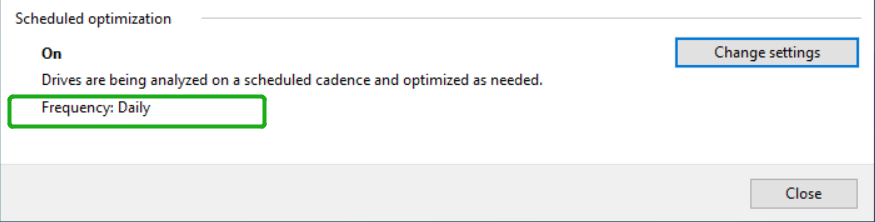
1. Click the Change settings button, and then click the Frequency drop down menu – you can select between Daily, Weekly and Monthly.

2. Use the Choose button to select the target drive.

3. Once you have made your selection, you can close the window.
Comments